The quick answer
Create a dedicated Email Inbox in Mailsink, connect it to a new or existing Notion database, and manually forward one representative email. Review the resulting page before you add any automatic forwarding rule. This preserves the useful new-message capture part of the workflow without treating Mailsink as a replacement email client.
Notion's official help says the Notion Mail inbox shuts down on September 22, 2026. Existing email history remains in Gmail, and existing synced email databases remain accessible but stop receiving new email. Check Notion's official next steps for the latest product and export guidance.
First, save the data that only lives in Notion Mail
Mailsink does not replace this shutdown step. Notion says you should save or export Notion Mail-only data by September 21, 2026, including drafts, scheduled emails, snippets, and auto-label instructions. Files attached to snippets need to be downloaded separately. Notion Mail reminders and the way custom inbox views are organized will not transfer.
Handle that export first. Then use the rest of this guide to create a route for selected new messages.
Decide what you actually need to preserve
This guide is for a workflow where selected new emails become records in Notion. It is a good fit when you need receipts, inquiries, newsletters, tasks, or other useful messages to keep landing in a workspace database.
It is not a fit if you need:
- a full email client inside Notion;
- historical mailbox migration;
- two-way mailbox sync;
- an exact copy of Notion Mail's old interface or synced database behavior.
Treat historical email and new-message capture as two separate decisions. That keeps the replacement small enough to test safely.
Before you start
Have these ready:
- a Notion workspace you can connect with OAuth;
- the page or database where captured email should live;
- one representative email that is safe to use as a test;
- the fields you must see before the result is useful.
For a general capture workflow, the subject, sender, recipients, date, and body are usually the right starting point. Attachment handling and optional extracted fields depend on the message, configuration, destination permissions, and plan.
Step 1: create a Notion Email Inbox
- Start the Notion Email Inbox setup.
- Connect the Notion workspace where the records should land.
- Keep Email Inbox selected unless you already know you need a finance, newsletter, lead, or task preset.
- Create a new database or link an existing database.
- Copy the private address ending in @in.mailsink.app.
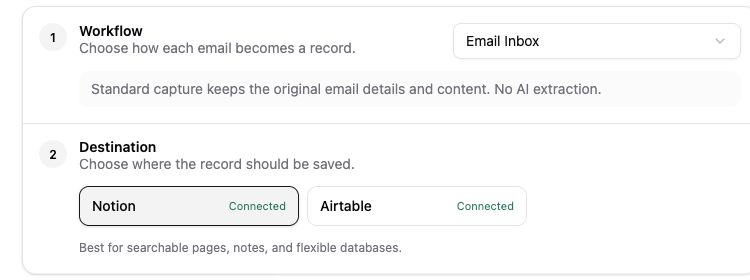
Use a dedicated inbox for one job. A receipt inbox and a lead inbox should not share the same destination merely because both start as email.
Step 2: forward one real email manually
Open a representative message in Gmail, Outlook, Apple Mail, or another provider and forward it to the generated Mailsink address. Manual forwarding is intentional here: it proves the product route before provider verification and organization policy become part of the test.
Wait for the resulting record, then open it in Notion.
Step 3: validate the saved result
Do not stop at “a page appeared.” Check the result against the source email:
- Is the subject readable and useful as a page title?
- Are the sender, recipients, date, and body present where expected?
- Is the body readable enough for the workflow?
- If an attachment matters, did it arrive and open correctly?
- If optional extraction is enabled, do important values match the source?
- Does the record land in the database and view your team will actually use?
If one of these is essential and missing, fix the destination or preset before testing automation.
Step 4: choose manual or automatic routing
Manual forwarding is often enough for occasional receipts, important newsletters, or messages selected by a person. Use BCC when a copy should enter the workflow while you send or reply.
Automatic routing is useful only after the manual test works. Start with a narrow sender or subject rule, send another recognizable message, and confirm the new record before broadening the rule.
Notion Mail itself uses Gmail. The other providers below are included because the resulting Mailsink workflow can also capture manually forwarded messages from them.
| Provider | Reliable starting path | Automation constraint |
|---|---|---|
| Gmail | Manual forwarding or BCC | Gmail sends a verification message to the destination address before automatic forwarding can start. The current Mailsink beta does not reliably surface that message in-app. |
| Microsoft 365 / Outlook | Manual forwarding or approved BCC | Some tenants block external automatic forwarding with a 5.7.520 policy response. An administrator controls that policy. |
| Apple Mail and other clients | Manual forwarding | Automatic behavior depends on the account provider behind the client. Test the actual account and rule. |
Mailsink cannot bypass provider verification or organization mail policy.
Troubleshooting the first test
| Symptom | What to check |
|---|---|
| No record appears | Confirm the full Mailsink address, check that the inbox is active, and send a simple message without a large attachment. |
| The record lands in the wrong place | Recheck the selected Notion workspace, parent page, and linked database. |
| Important fields are missing | Confirm the chosen preset and database properties, then retry with a representative message. |
| An attachment is missing | Check file type and size, destination permissions, and current plan limits. |
| An automatic rule fails | Return to manual forwarding, then check provider verification or tenant policy before changing Mailsink. |
When to use a more focused workflow
Once general capture works, a preset can make the destination more useful:
- Receipt and Invoice Tracker for vendors, totals, dates, and finance review;
- Newsletter Knowledge Base for sources, summaries, tags, and saved links;
- Lead CRM for contact details, company context, and follow-up;
- Email Inbox for durable general-purpose capture without optional AI extraction.
Notion is best when the result belongs beside pages, notes, and flexible databases. If the workflow is primarily row-based operations, Airtable may be the clearer destination.
Privacy and security check
Only forward messages you intend Mailsink and the destination workspace to process. Workspace connections use OAuth. Review the Mailsink Privacy Policy before routing sensitive email, and use a safe representative message for the first test.
Your next step
Create a Notion Email Inbox, or first review what Mailsink replaces—and what it does not.